Inventory and hotbar
Only items you own appear in your hotbar, so you begin each life with 3 items. Upgrades either replace an earlier item or add a new item line. Arranging the hotbar changes the order of its buttons and quick-slot keys.
How it works
Section titled “How it works”Selection
Section titled “Selection”You start with the 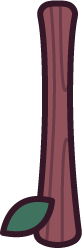 Stick, the
 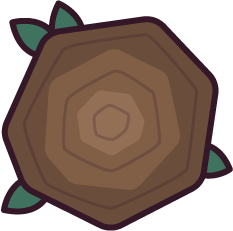 Wooden Wall and
the
Wooden Wall and
the 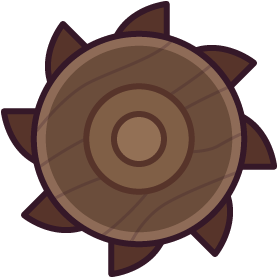 Wooden Miner. In the default arrangement, they appear consecutively in that
order. Click a hotbar button to equip its item, or use the displayed key. Empty inventory spaces do
not leave gaps between buttons: each quick-slot key selects the item at that visible position. On
touch devices, the hotbar is replaced by tool buttons around Attack, and the backpack button opens
the full inventory. See controls for key bindings and the touch layout.
Wooden Miner. In the default arrangement, they appear consecutively in that
order. Click a hotbar button to equip its item, or use the displayed key. Empty inventory spaces do
not leave gaps between buttons: each quick-slot key selects the item at that visible position. On
touch devices, the hotbar is replaced by tool buttons around Attack, and the backpack button opens
the full inventory. See controls for key bindings and the touch layout.
Upgrades
Section titled “Upgrades”Spending upgrade points on a 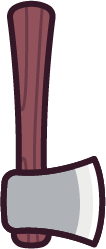 Basic Axe replaces
the Stick. If you are holding the Stick, the replacement also goes into your hand. If you are
holding something else, that selection stays equipped. An upgrade that starts a separate item line
adds its item to your inventory instead. The upgrade trees show which choices
replace each other.
Basic Axe replaces
the Stick. If you are holding the Stick, the replacement also goes into your hand. If you are
holding something else, that selection stays equipped. An upgrade that starts a separate item line
adds its item to your inventory instead. The upgrade trees show which choices
replace each other.
Arranging does not change these replacement rules. The upgraded item keeps the earlier item’s place in your saved order.
Arrangement
Section titled “Arrangement”Drag a hotbar item to another position, or open Arrange inventory from the menu, select it and use Move earlier or Move later. Hold still for 0.35 seconds before dragging with touch; release the item over the hotbar to save the move. Restore default order restores the original arrangement. Your order is saved in your browser and returns after a reload when browser storage is available.
Touch devices use tool buttons instead of the hotbar, and Arrange inventory is not offered there. Set the buttons in Settings under Touch layout, as described in controls.
Quick-slot keys select items in your arranged order. Adding an item can change the shortcuts of items after it, so check the key printed on the button after choosing an upgrade. Changing a key binding in Settings changes that shortcut’s key without changing the item order.
Tooltips
Section titled “Tooltips”In the desktop layout, hover over a hotbar button or focus it with the keyboard to see its name, description and any resource cost per use. The same details appear in Arrange inventory. Melee and bow damage fields show damage to players. Build-item details show the placed count against your structure limit and the structure’s maximum health.
A shaded countdown covers an item button while its cooldown is active. Trying to fire a ready bow starts its cooldown even if you cannot afford the shot. It spends no resources and fires no arrow in that case, so a cooldown indicator alone does not confirm that a shot fired.
Equipment
Section titled “Equipment”Your held item affects movement even when you are not using it. These speeds apply before status effects or a dagger’s kill boost. Build-item tooltips omit movement speed.
| Held item | Movement speed |
|---|---|
| Stick | 100 % of normal speed |
| Basic Axe | 80 % of normal speed |
 Basic Sword Basic Sword |
85 % of normal speed |
 Basic Spear Basic Spear |
75 % of normal speed |
 Basic Daggers Basic Daggers |
110 % of normal speed |
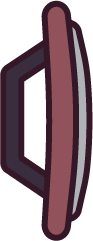 Basic Shield Basic Shield |
70 % of normal speed |
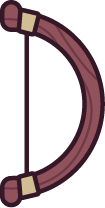 Basic Bow Basic Bow |
70 % of normal speed |
| Wooden Wall | 50 % of normal speed |
| Wooden Miner | 50 % of normal speed |
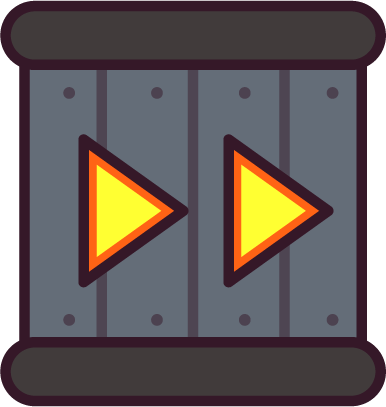 Speed Boost Speed Boost |
100 % of normal speed |
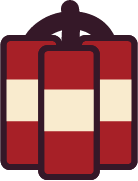 TNT TNT |
100 % of normal speed |
 Landmine Landmine |
33 % of normal speed |
- Switch away from a wall or miner between placements to move at your weapon’s held speed.
- Put an item you switch to often near the front of your order. Upgrading it keeps that position.
- Read a build item’s placed count before trying to add another structure. A finished cooldown does not bypass the structure limit.